Instant teleport
Jump across the world in one click. No walking simulation, no waiting.
Introducing Loci
Pick any point on the map and your iPhone is there. No paywalls, no jailbreak, no hard setup. Just plug in and click.
How it works
Setup takes about two minutes, once. After that, teleporting is a single click.
Connect your iPhone to your Mac with a cable. Loci finds it right away, then walks you through Trust and Developer Mode with pictures.
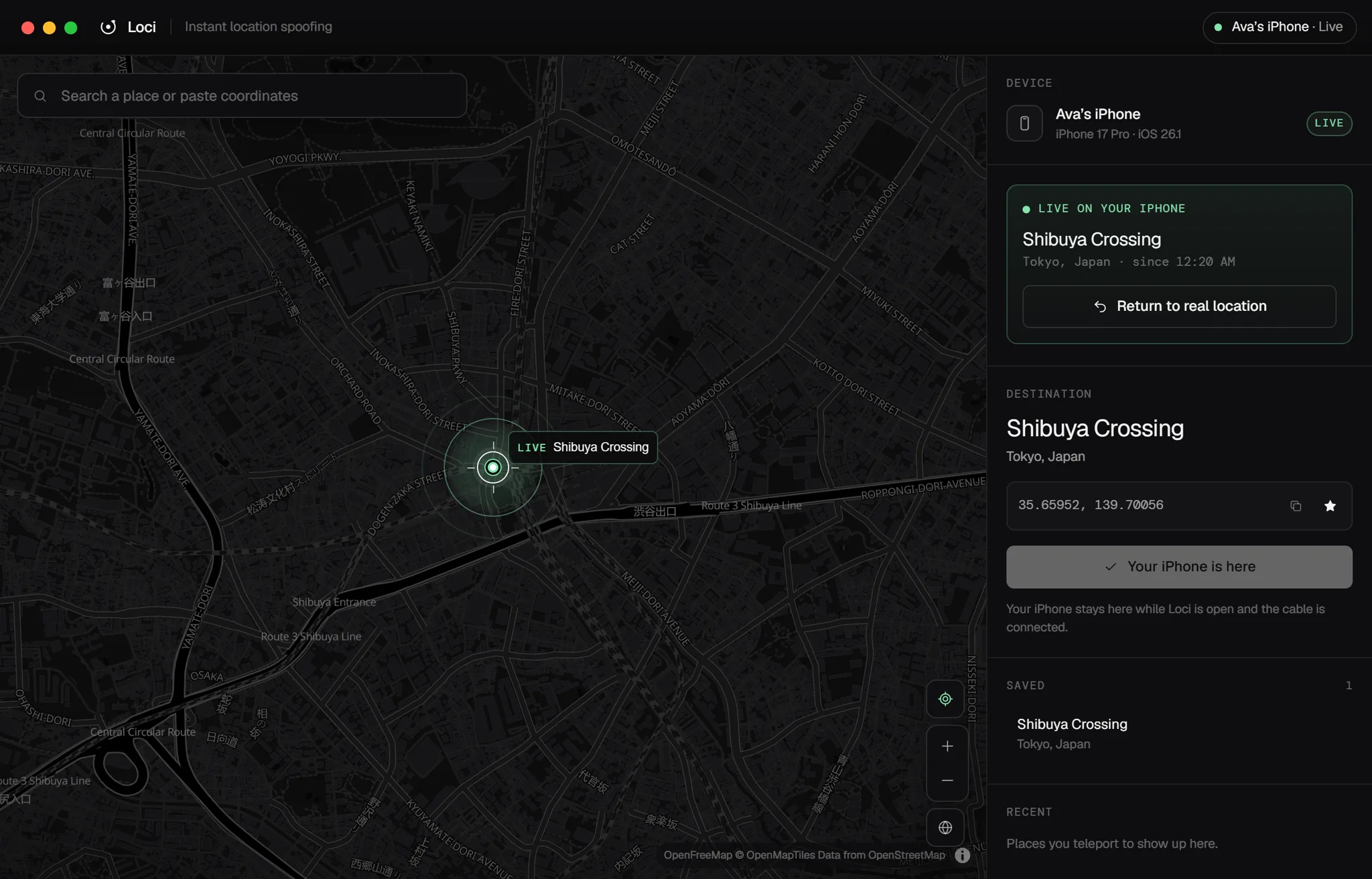
About two minutes, onceClick anywhere on the map, search for a city or landmark, or paste coordinates and map links.
Search · Click · PasteHit Teleport here. Your iPhone’s location changes right away, and the apps that use location see the new spot.
Live on your iPhoneOne click returns your real location. Unplugging your iPhone does it too.
Return to real location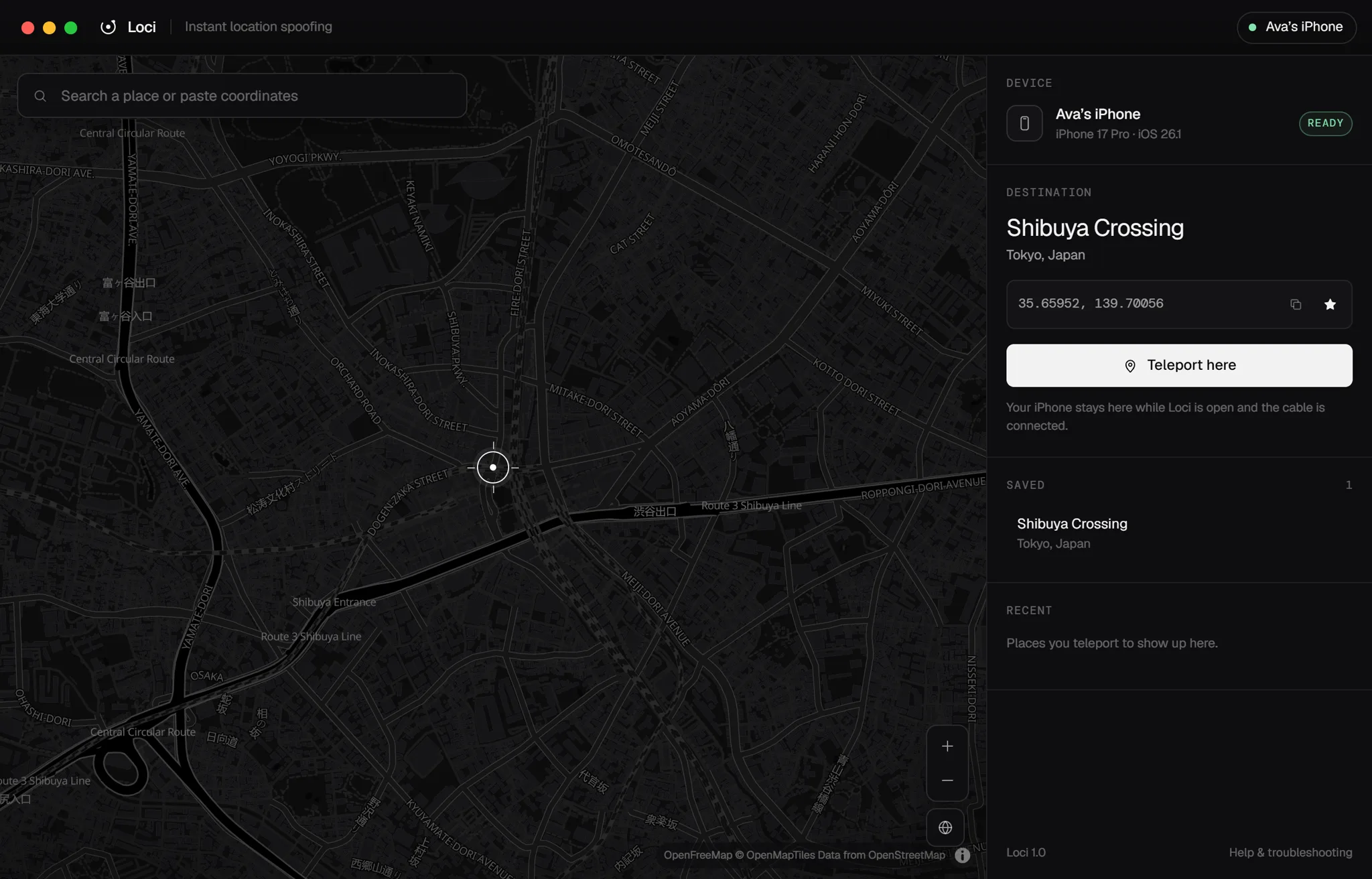
Real footage
Search, pick, teleport. Your iPhone follows right away.
Why Loci
Most location tools charge a subscription, want an account, or need a fiddly setup. Loci doesn’t.
Features
Jump across the world in one click. No walking simulation, no waiting.
Cities, landmarks and addresses. Paste coordinates or a map link and go.
Star the spots you use often. Recent places stay one click away.
Back to your real location whenever you want. Unplugging works too.
Teleports happen on your Mac. Loci doesn’t track where you go.
Sets up the developer connection on iOS 17 and later for you, and works with older versions too.
Help
Stuck on something? Most fixes take a few seconds.
Yes. Loci will be free when it launches. No trial and no subscription, just a free account.
Any iPhone on a recent version of iOS. On iOS 17 and later, Loci opens a private developer connection over the cable for you. Older versions use Apple’s classic developer service.
Use a cable that carries data, not just power. Unlock your iPhone and tap Trust when it asks. If it still doesn’t show up, unplug it and try another port.
On your iPhone, open Settings, then Privacy & Security, then Developer Mode. The switch appears after Loci connects once. Turn it on, let the iPhone restart, then confirm.
Open System Settings, go to Privacy & Security, scroll down and click Open Anyway. You only need to do this the first time you open Loci.
Your iPhone goes back to its real location. You can also click Return to real location in Loci at any time.
Not yet. Loci is Mac only for now.
Loci for Mac